Overview
Keymapper is a non-destructive shortcut manager for Blender and Bforartists. It lets you create custom shortcuts in a managed list — organized into folders, with one-click presets, import/export, and live conflict detection.
Instead of editing Blender’s keymap directly — which is destructive, error-prone, and hard to undo — Keymapper layers your shortcuts on top. When a shortcut collides with a built-in default, that specific default is disabled, and it is restored automatically the moment the shortcut is removed or deactivated. Nothing in the factory keymap is ever overwritten.
This layered approach also means you're never locked to a frozen keymap. Keymapper works on top of whichever keyconfig you use — Blender, Industry Compatible, Bforartists, or a custom template — and you can switch between them freely. And when the Blender team adds or changes default keybindings in a new version, those changes reach you as normal: everything you haven't overridden stays stock, so your setup never falls behind the way a manually edited or exported keymap does.
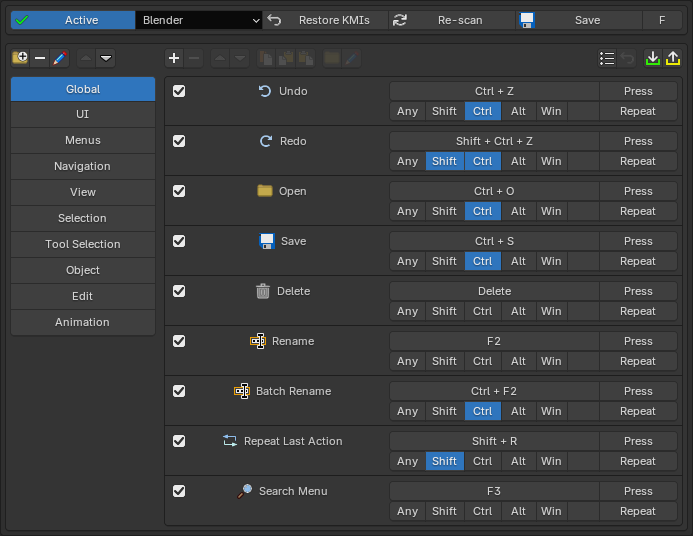
Highlights
- Non-destructive — factory keybindings are never overwritten, only temporarily disabled while your shortcut needs the key.
- Any keyconfig — works on top of Blender, Industry Compatible, Bforartists, or custom templates, and switching stays safe.
- Multi-operator entries — one or more keybinds bound to many operators, so entries work across multiple editor contexts.
- Conflict detection — see exactly what a shortcut collides with — Blender's defaults, your own KMIs, and KMIs added by other addons — before you commit.
- Presets — apply curated shortcut sets with one click, and restore any edited preset entry back to its original.
- Bundled operators — extra tools like a marking menu and a tool-select pie, ready to bind.
- Import / Export — share your full setup as a single JSON file.
Compatibility
Blender, Bforartists – version 5.1 – 5.2
Changelog
1.3.4
Fixed
- Fixed shortcuts running the wrong operator setting.
A shortcut whose setting matched the operator's own default could attach itself to an existing binding on that key rather than creating its own. That binding carried no setting, so Blender fell back to whichever value you used last — the shortcut ran the wrong variant while looking correct in the keymap editor. Near-identical shortcuts on other keys were unaffected, which is what made it hard to spot. Existing entries are fixed by updating; no need to recreate them. - Keymapper now warns in the console if a shortcut's setting fails to apply.
1.3.3
Improved
- Faster startup.
Fixed wasted disk reads during the operator scan.
1.3.2
Improved
- Much faster startup and file loading.
Keymapper's operator scan was asking Blender for its operator list in a way that made Blender re-process the entire list once for every operator category. The scan now reads it once. Startup is around three times faster and opening or creating a file around six times faster, with a bigger improvement the more add-ons you have installed — the old approach got disproportionately slower as the number of operators grew.
1.3.1
New
- Operator properties can now be cleared.
Each property in the operator editor has an X to clear it, matching Blender's own keymap editor. A cleared property isn't stored at all, so the operator uses its default behaviour — clearing Section on "Open Preferences", for example, makes it open whichever panel you had open last.
1.3.0
New
- Import now offers Replace or Add.
Importing a shortcut file when you already have entries asks whether to replace everything or add the imported set alongside what you have. Added entries keep their folders, and re-importing the same file no longer duplicates folders or collides with existing entries. A fresh setup imports straight away with no prompt.
Improved
- Outdated keymap names are now migrated automatically.
Shortcuts saved under names Blender has since renamed are updated on load: "Grease Pencil Paint Mode" to "Grease Pencil Draw Mode", "SequencerCommon" to "Video Sequence Editor", "SequencerPreview" to "Preview", and "NLA Channels" to "NLA Tracks". Affected shortcuts start working again without any manual fixing. The Grease Pencil draw-mode context menu in the Context Menu preset is fixed by this. - Improved conflict detection in the Video Sequencer.
The sequencer preview keymap was listed under a name Blender doesn't use, so conflicts there went undetected.
Fixed
- Fixed a crash (EXCEPTION_ACCESS_VIOLATION) when restoring keymap items.
Restoring a shortcut could hand Blender a keymap item with no factory original behind it. Blender dereferences that without checking and the process dies — a hard crash no error handling can catch. Keymapper now verifies a factory original exists before asking Blender to restore. - Fixed phantom keymaps appearing in Preferences > Keymap.
Entries referring to a keymap that doesn't exist in your Blender version caused Keymapper to create an empty keymap Blender never routes input to — those shortcuts silently did nothing, and the leftover keymaps were what made the crash above possible. Keymapper now refuses to create a keymap that isn't real. - Fixed restores targeting the wrong item in the addon keyconfig layer.
Addon-layer restores were resolved against the active keyconfig instead of the addon one, so an ID collision could revert an unrelated shortcut.
1.2.4
Fixed
- Removed an operator from the Reveal preset that no longer exists in Blender 5.2 (its function is covered by another operator already in the preset).
1.2.3
Fixed
- The Paste Shortcut Entry button no longer requires an entry to be selected.
1.2.2
Fixed
- Some entries (like "Toggle Proportional Edit") didn't disable the default keybindings they should override. They do now — existing entries included.
1.2.1
Improved
- Moving entries up and down is now near-instant — with many entries, each move used to take up to a second.
- Faster conflict scanning overall: adding, editing, and deleting entries recomputes conflicts several times faster with large entry lists.
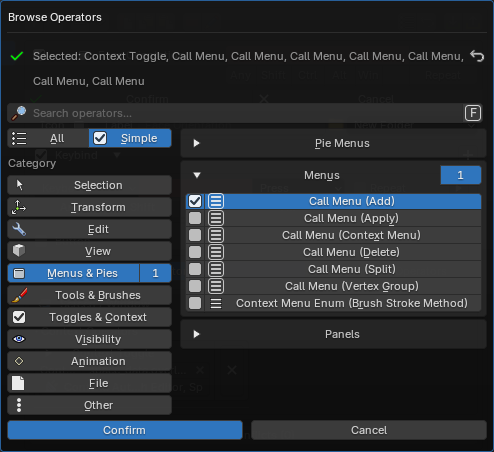
- The "Selected:" summary in the Browse Operators popup collapses repeated names — adding the same operator several times reads as "Call Menu (x7)" instead of listing it once per instance.
1.2.0
New
- Popup dialogs everywhere: Browse Operators, menu/pie/panel/tool value pickers, per-operator Context, Additional Keybind Detection Contexts, and button Locations now open as draggable dialogs instead of expanding inside the form. Each shows a "Selected" summary, a reset button, and Confirm/Cancel — changes only apply when you hit Confirm; Cancel, Esc, or clicking away discards them.
- Addon Conflicts: conflicts with other addons' keymap items get their own dropdown, separate from Shortcut and Keybind conflicts.
- Conflict previews: each conflict dropdown shows a live "(Preview - n)" count when your unsaved edits would change the result.
- Button visibility toggle on the entry card: hide or show an entry's button in all its locations with one click, without removing anything.
- Edit button locations straight from the entry card — click the locations line to open the picker.
- Live button preview while editing, in both the main editor and the right-click popup.
- Full tool list: the Set Tool picker now includes every tool from every editor and mode — previously only tools that had a keybinding appeared.
Improved
- Clearer names everywhere: menus, pie menus, panels, operators, and tools that share a name are now told apart — "Add (View3D)", "Select All (Graph)", "Select More (Paint Face)", "Select Circle (Sequencer)", "Brush (Blur)". Menus and panels without a proper name get a readable one instead of a raw identifier.
- Tools are organized into groups (Brush, Annotate, Select, Box, Extrude…), and the friendly/pure naming toggle is available in all the value pickers.
- Redesigned selected-operators list: operators arrange into a responsive grid that adapts to the panel width, subcategories with a single operator pack side by side, and divider lines keep the groups readable.
- Reworked operator editor: one Operators list with a Browse button, a Properties dropdown on each operator's row, and a cleaner header — Confirm/Cancel and the Icon/Label/Folder row sit in a fused header bar, with the form sections divided by subtle seams instead of nested borders.
- The right-click quick-add popup now matches the main editor: same Button section, editable Context selector, detection contexts on keybind slots, and the button preview.
- Deleting a folder selects the folder below it instead of jumping to the top.
- Unbound keys are highlighted red until you assign one.
- Polished entry cards: consistent rounded corners across all rows, cleaner icons, better spacing.
- Tighter conflict lists, "Confirm" instead of "OK", "Re-scan" instead of "Re-scan Operators", and a Changelog link in the preferences.
Fixed
- Cancelling the Context dialog could make the lower half of the editor disappear until Blender restarted.
- Right-mouse shortcuts (like the "Context Menu" and "Marking Menu" presets) no longer show a false conflict with "Area Options" from Screen Editing — those bindings only fire on area edges and can't actually collide with your shortcuts.
- Five preset folders (UI, Menus, View, Tool Selection, Object) were hidden in stock Blender.
- Custom icons could show as the wrong (auto) icon in previews while editing an entry.
- Long entry names no longer break the entry card's layout; long button labels no longer get cut off.
- Buttons with the label hidden now fill the card row instead of shrinking.
1.1.2
Fixed
- Fixed a duplicated entry silently disabling the original's shortcut after being moved above it.
- Fixed the master Active/Inactive switch being bypassed by edits.
- Fixed editing an entry bound identically to a Blender default killing its shortcut.
- Fixed overridden Blender defaults sometimes staying disabled after their entry was removed.
- Fixed "Restore KMIs" deleting some factory bindings that share one key.
- Preset entries are now stored with the same complete field set as imported entries.
1.1.1
- Fixed picking a multi-operator in the Simple browse view also selecting a neighbouring one.
A grouped operator counted as selected as soon as its first property variant was in the selection, so two groups that shared one variant lit up together.
1.1.0
- (NEW FEATURE) Right-Click add Popup Panel
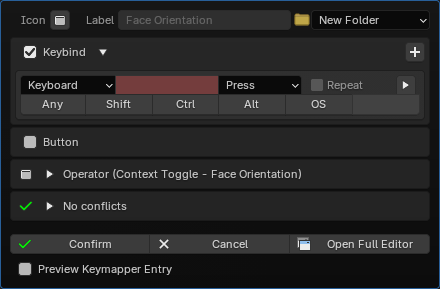
When adding a shortcut from the right-click menu, a popup panel now appears where you can finalize the shortcut creation without needing to open the full Keymapper panel.
There is also a button in the popup panel to re-direct you to the full Keymapper panel if you want to edit it further there.
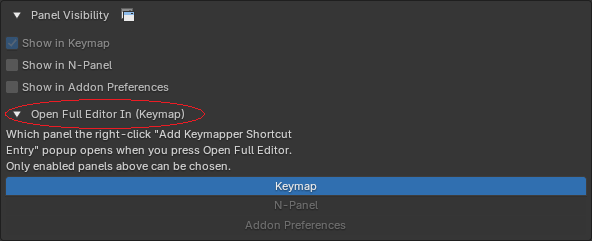
Three new togglable options have therefore been added to the addon preferences, where you can select which Keymapper panel it should re-direct to. - (NEW FEATURE) Changelog
Added a collapsable changelog in addon preferences, making it possible to see everything that's changed since release. - (NEW) Update notification.
If Keymapper was installed through the online extension system, the main panel now shows an "Update Available!" banner when a newer version has been published. Clicking it opens Blender's extension list so you can install the update. The check reads the repository listing Blender itself has already downloaded, so it appears once Blender has checked for updates. - (NEW) Every keybind of an entry now has its own slot.
Entries with several keybinds previously showed only the first one plus a "+ N other keybindings" note. Each keybind is now listed in full on the entry card, and entries that also create a button show it beneath them. - (NEW) Attribute names are now shown in plain language.
Entries built on wm.context_* operators are named after the setting they change, so a shortcut now reads "Face Orientation" instead of "Context Toggle". - (NEW) "Show in Keymap" is now permanently enabled, so at least one Keymapper panel always exists.
- Reworked the entry editor layout.
Icon, label and folder now share one row, the Keybind and Button checkboxes double as their section headers, and each selected operator sits in its own box with its properties below the context selector. - Fixed internal conflicts not being detected for entries bound in global keymaps.
An entry living in the Window or Screen keymap fires in every editor, but it was only compared against a fixed list of contexts. Anything outside that list — Animation, Sequencer, Grease Pencil modes and others — was treated as unrelated, so real collisions went unreported. - Fixed conflicts being missed for operators that bind to many keymaps.
Activating an entry registers its operator in every keymap that operator belongs to, but conflict detection only considered the first one, so collisions in the other keymaps went unreported. - Fixed the conflicts list not refreshing after changing a keybind.
Internal conflicts were served from a cache that was not cleared when the shortcut changed, so a conflict found with the previous keybind could stay listed after it no longer applied. - Fixed a crash that could occur while scanning the keyconfig after enabling or disabling add-ons.
- Fixed the enable checkbox doing nothing on an entry that had not been confirmed yet.
- Fixed a button using the operator name instead of the entry label when no custom button label was set.
- Updated Documentation to reflect changes.
1.0.2
- Fixed a bug where the initial "Scan Keyconfig" prompt would not go away after pressing it if the Keymapper was installed through the online extension system.
1.0.1
- Fixed a bug where default KMIs would get disabled from conflict detection even though conflict detection was set to disabled.
1.0.0
- Initial release of Keymapper
Installation
There are several ways to install Keymapper — use whichever fits you best.
Drag and drop from Superhive
The fastest route. On your Superhive orders page, drag the Keymapper extension straight from the browser into the Blender window. The first time, Blender asks for your Superhive API token (found in your Superhive account settings) and adds Superhive as a remote extension repository.
Once connected, all your Superhive purchases appear under
Preferences > Get Extensions with one-click Install — and
you get update notifications inside Blender whenever a new version is
released.
See Superhive’s own guides: extension support announcement and connecting Superhive as a remote repository.
Install through Blender's extension system
With Superhive connected as a remote repository (see above), open
Edit > Preferences > Get Extensions, find Keymapper in
the list, and press Install. Updates later are a single
click on Update.
Drag and drop the downloaded zip
Download the Keymapper .zip from Superhive (do not extract
it), then drag the file from your file browser into the Blender window and
confirm the install prompt.
Install from Disk
- Download the Keymapper
.zipfrom Superhive. Do not extract it. - In Blender, open
Edit > Preferences > Add-ons. - Click the dropdown arrow in the top-right corner and choose Install from Disk…
- Select the downloaded
.zipand confirm. - Make sure the checkbox next to Keymapper is enabled.
All methods work in Bforartists too — Keymapper detects the host application automatically.
Updating
Via the Superhive repository: press Update in
Get Extensions. Manually: install the new version over the old
one and restart. Your shortcuts, folders, and settings are preserved either
way.
Uninstalling
Before removing the addon, press Restore KMIs in the Keymapper panel to return every keybinding to its original state, then disable or remove Keymapper from the Add-ons list.
Getting Started
Keymapper's panel can be shown in three places:
Edit > Preferences > Keymap— shown at the top of the Keymap section. Always enabled, so at least one Keymapper panel exists.- The N-panel in the 3D Viewport, under the Keymapper tab.
- The addon's own preferences page.
The N-panel and Addon Preferences locations are toggled in the addon
preferences (Edit > Preferences > Add-ons > Keymapper)
under the Panel Visibility dropdown.
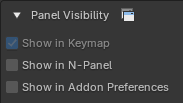
This is the Keymapper panel as it appears in
Preferences > Keymap, its default location:
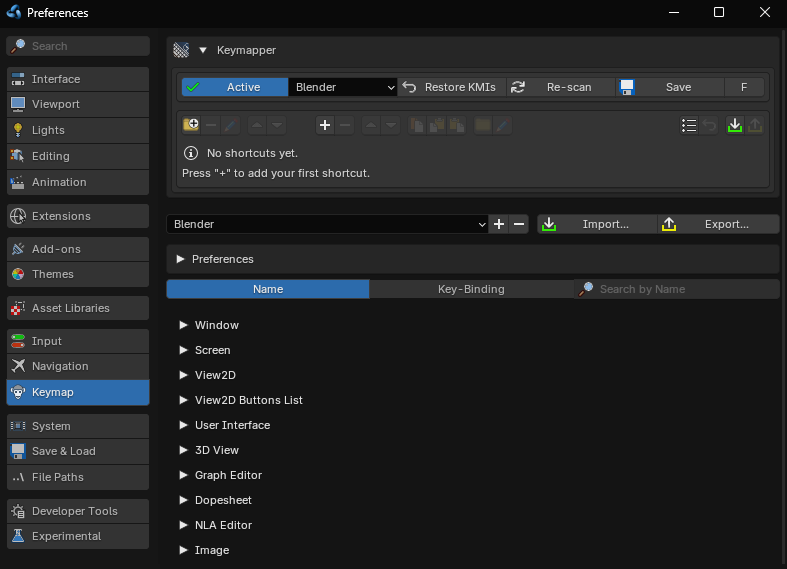
The Settings row
At the top of the panel you'll find:

- Active / Inactive — the master switch. Turning it off unregisters all your shortcuts and restores every disabled default.
- Keyconfig dropdown — the native keyconfig template Blender is using (Blender, Industry Compatible, etc.).
- Restore KMIs — removes all Keymapper entries (KMIs = keymap items, Blender's individual keybinding entries) and restores defaults.
- Re-scan — refreshes the operator and keymap scan; it turns red when a re-scan is recommended (e.g. after enabling other addons or switching keyconfig template).
- Save — saves your entries; highlighted when there are unsaved changes.
- F / P — toggles between friendly operator names and raw Python identifiers.
Creating Shortcuts
- Click the + button in the toolbar to open the entry form.
- Pick one or more operators via Browse Operators.
- Set the keybinding — key, modifiers (Shift/Ctrl/Alt/Win), and event type (Press, Click, Drag, …).
- Confirm. The shortcut is registered immediately.
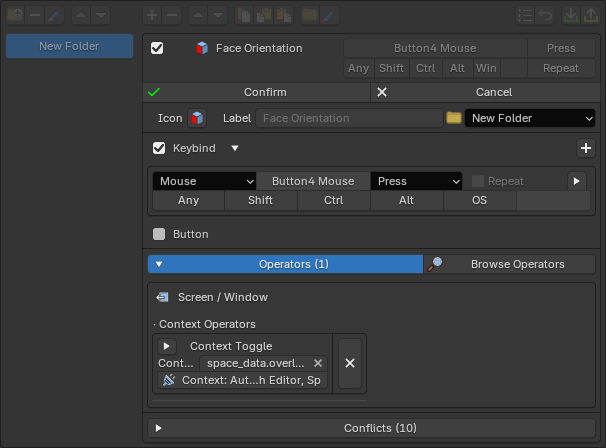
Adding from the right-click menu
The fastest way to bind something you're looking at: right-click a button or menu item in the UI and choose Add Keymapper Shortcut Entry…
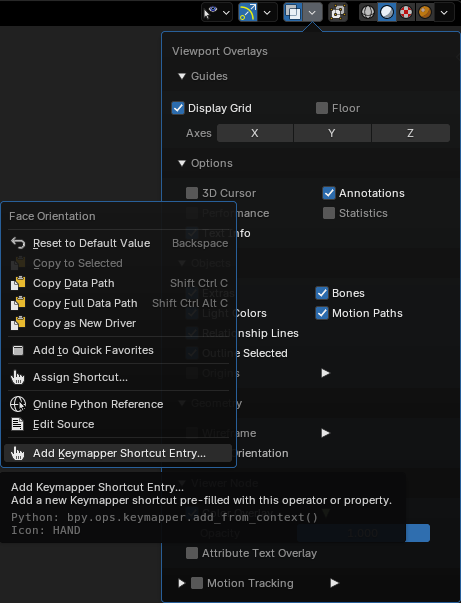
A popup panel opens with that operator already filled in — set the keybind and confirm right there, without opening the full Keymapper panel. The popup offers the same controls as the main editor: the Button section, context selector, detection contexts, and button preview. The popup also has a button that redirects you to the full panel for further editing; which panel it redirects to is configurable in the addon preferences.
Browse modes
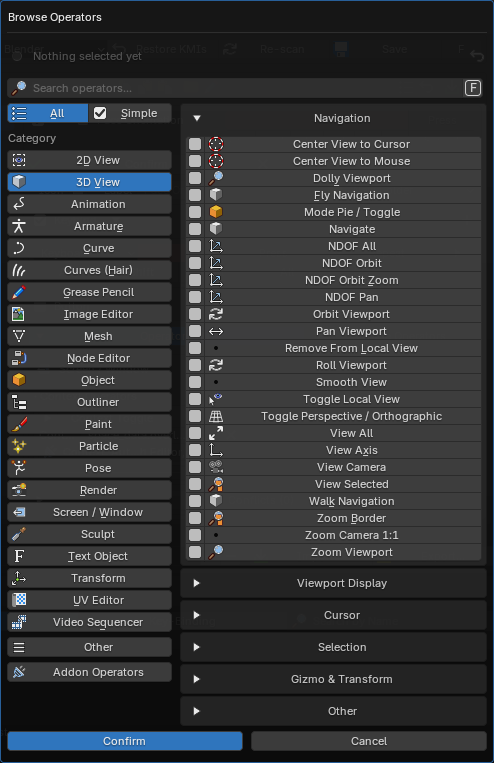
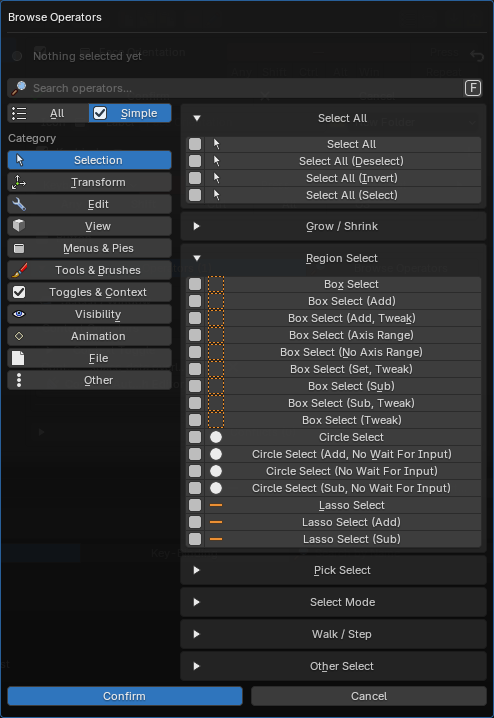
Browse Operators opens as a draggable popup dialog. A "Selected" summary grows with your picks, and nothing is applied until you press Confirm — Cancel, Esc, or clicking away discards the changes. The same dialog style is used across the editor: value pickers, per-operator Context, detection contexts, and button locations.
- All — every operator, organized into categories.
- Simple — curated multi-operator actions, e.g. one "Select All" that covers every editor and mode at once.
- Factory — every binding the factory keymap actually uses. Disabled by default; enable in preferences under Other.
Multi-Operator Entries
An entry can hold several operators and several extra keybinds at the same time. Each operator in the entry carries its own context (which editor or mode it fires in) and its own properties — each operator sits in the Operators list with a Properties dropdown on its row and its own context selector. Because contexts don't overlap, the operators never fight each other — the one that belongs to the editor you're in is the one that runs.
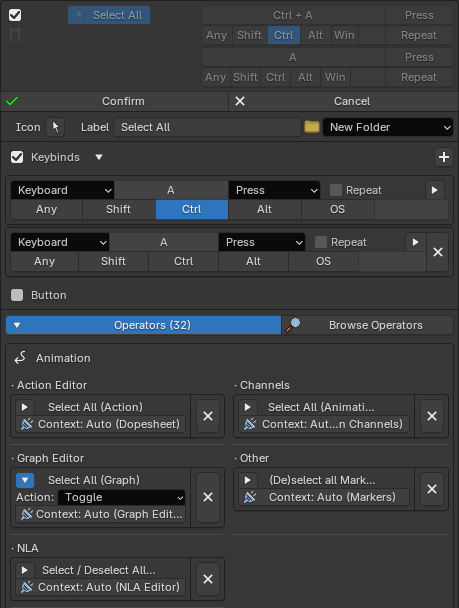
This is what makes one key work "everywhere": a single Select All entry can
carry mesh.select_all, object.select_all,
curve.select_all and more, each scoped to its home context.
Contexts can be left on automatic, where Keymapper resolves each operator's
home keymaps for you, or set manually per operator. While you edit, each conflict
dropdown shows a live "(Preview – n)" count whenever your unsaved changes
would alter the result.
The quickest way to build one is the Simple browse mode: selecting a multi-op there adds the whole bundle of operators in one click, with the correct per-operator contexts and properties already set.
Labels & Icons
Entry labels
An entry's displayed name comes in two flavors. By default it is pre-registered: Keymapper derives it from the entry's first operator using its friendly-name catalog (the F/P button in the Settings row switches between these friendly names and the raw Python identifiers). Set a custom label in the entry form and it overrides the derived name entirely — useful when a bundle of operators deserves a name of its own.
Attribute-based operators get plain-language names too: an entry built on a
wm.context_* operator is named after the setting it changes,
so a shortcut reads "Face Orientation" rather than "Context Toggle".
Custom icons
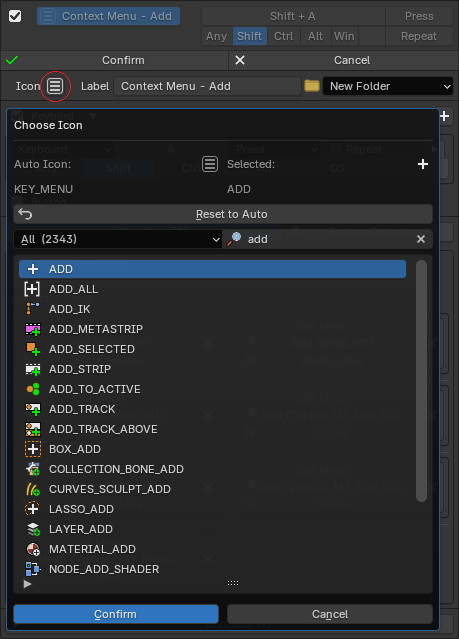
Each entry shows an icon, automatically resolved from its first operator. To change it, open the entry form and click the icon to open the icon picker — browse by category or search, preview the current and selected icon side by side, and use Reset to Auto to return to the automatic choice.
Entry Buttons
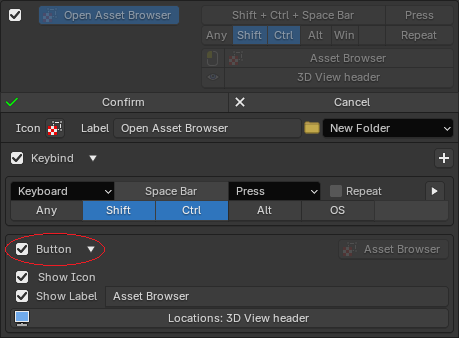
A shortcut doesn't have to be a keybind at all — an entry can also be a button placed in Blender's UI. In the entry editor, enable Button (Keybinds and Button share one section) and pick one or more locations via the Locations dialog; the button shows the entry's icon and/or label (both can be toggled, though at least one must stay on), with a live preview while you edit — in both the main editor and the right-click popup. Pressing the button runs the first of the entry's operators that is valid in that context.
Keybind and Button can be combined on the same entry, but at least one of the two must remain enabled. A button-only entry registers no keybindings and disables no defaults — by default it is excluded from conflict scanning, but an optional toggle can make it detect and disable shortcut conflicts.
The entry card gives quick access too: a visibility toggle hides or shows the entry's button in all its locations with one click, and clicking the card's locations line opens the locations picker directly.

Additional Keybind Detection Contexts
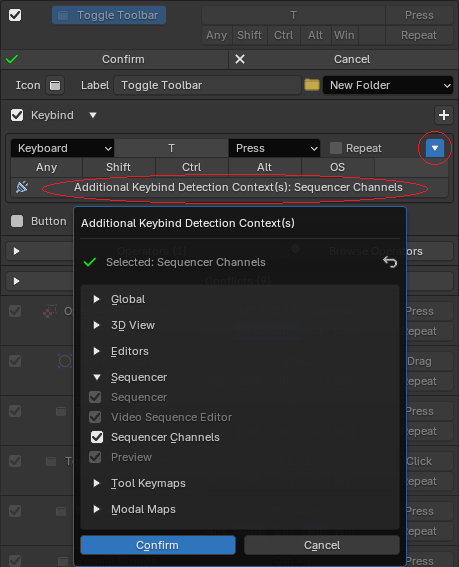
Every keybind slot has an Additional Keybind Detection Context(s) picker, tucked behind a small arrow next to Repeat — it opens as a popup dialog. Contexts checked here don't create a keybinding — they extend the conflict detection for that key, so same-key defaults in those extra contexts are disabled too. Use it when a default binding in a context your operators don't cover would otherwise still swallow your key. Contexts the entry's operators already occupy show pre-checked and locked.
Bundled Operators
Keymapper ships with a few operators of its own — extra tools that Blender doesn't have, ready to be bound like any other operator. You'll find them in Browse Operators under Keymapper's own subcategory in the category "Addon Operators".
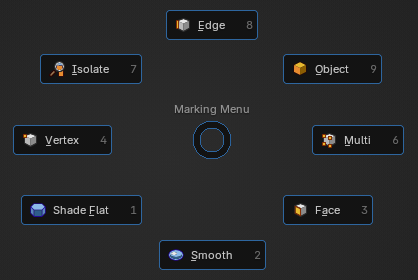
- Marking Menu — a pie menu for fast access to common actions.
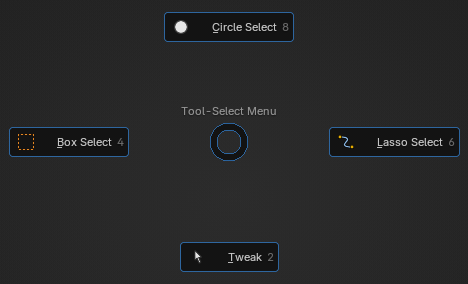
- Tool-Select Menu — a pie menu for switching the selection tool.
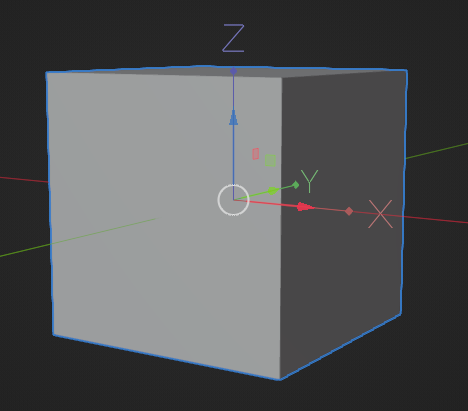
- Pivot Transform — ability to easily edit the pivot point of an object.
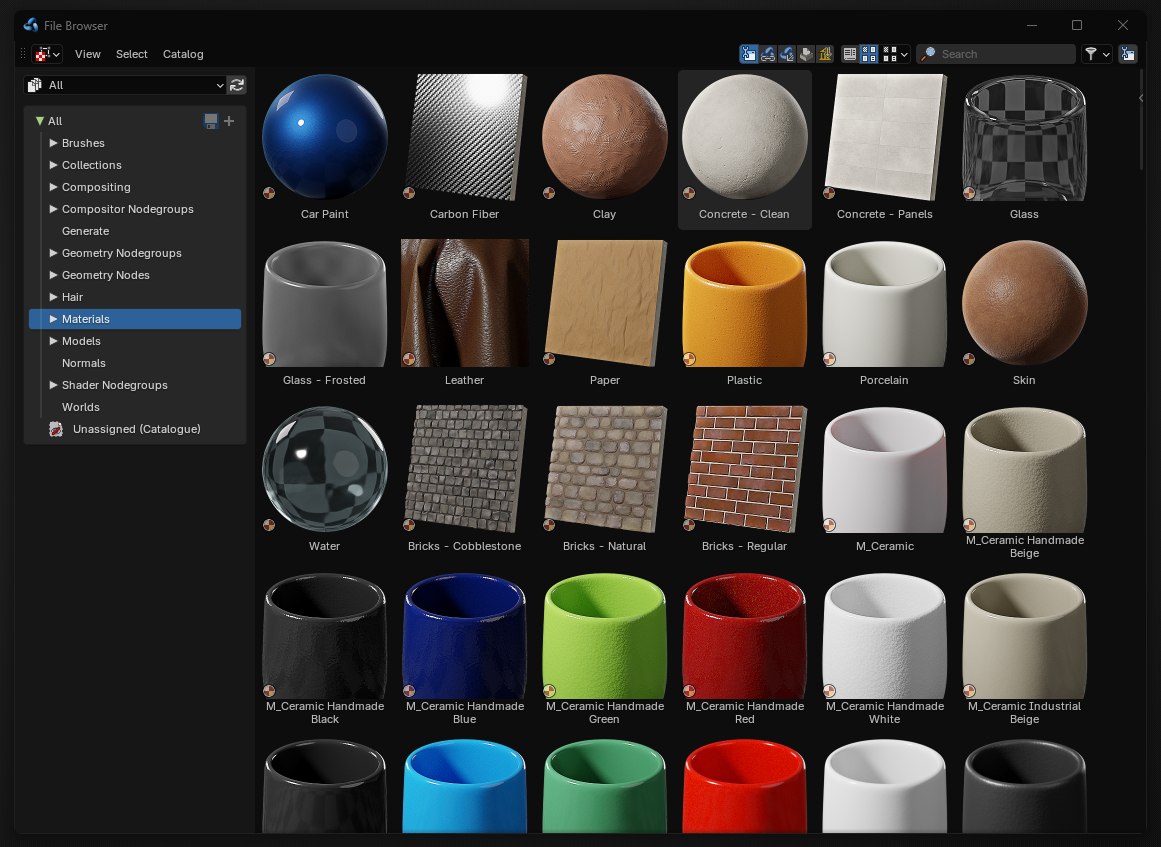
- Open Asset Browser Window — opens the Asset Browser in its own separate window.
All of the bundled operators are included in the shortcut presets, so they work the moment you apply those — see Folders & Presets.
Folders & Presets
Folders
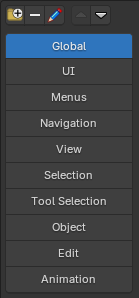
Entries are organized into folders. Use the toolbar to create, remove, rename or move folders up/down. You can also move entries up/down, duplicate, and copy/paste entries between folders. The folder icon on the right side of the toolbar is specifically for moving entries to other folders.

Shortcut Presets
The Shortcut Presets popup offers curated folders of ready-made shortcuts — navigation, selection, tools, pie menus and more. Apply everything with Add All, a single folder, or individual entries. Some presets bind Keymapper's own bundled operators — the marking menu, tool-select pie, pivot editing, and asset browser window — so they work the moment you apply them.
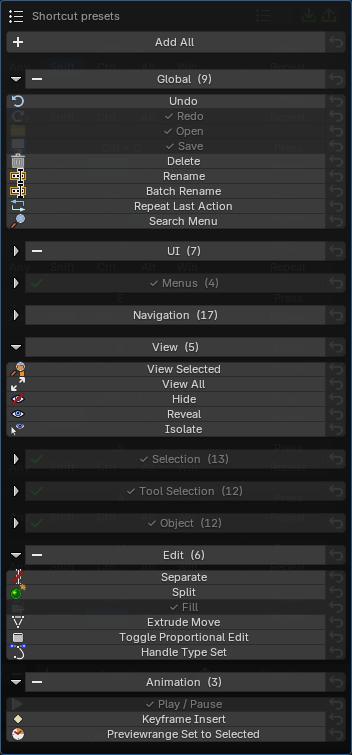
Applied preset entries remember where they came from: if you edit one, a Restore button lets you revert it to the original preset definition at any time.
Conflict Detection
Keymapper checks your entries against three kinds of conflicts:
- Against Blender's defaults — shortcut conflicts (a default doing the same thing) and keybind conflicts (a different action already on your key).
- Against other addons — keymap items registered by other addons get their own Addon Conflicts dropdown, separate from Shortcut and Keybind conflicts.
- Between your own entries — duplicates, shared keys, and overlapping operators, marked with a warning icon on the entry card.
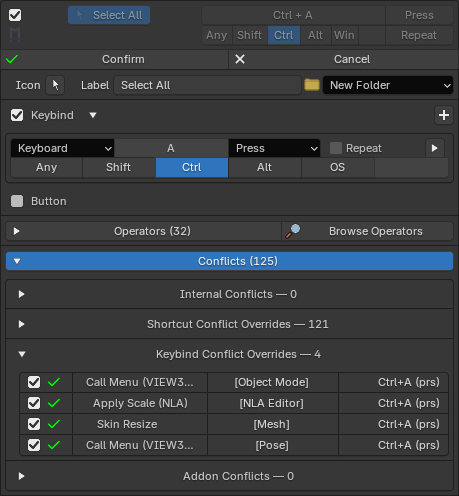
Clicking an entry's conflict icon enters focus mode, dimming everything not involved in that conflict so you can see exactly which entries collide.
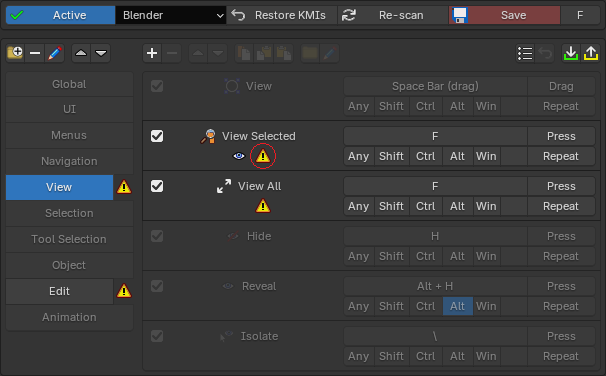
An entry that is identical to a default keybinding shows a dimmed blue mirror icon. Instead of creating a duplicate, Keymapper takes control of the existing default — and returns it to its original state when the entry is removed or edited away from being identical.

A conflict is not necessarily a problem — disabling a colliding default is exactly how Keymapper gives your shortcut priority. The icons are there so you always know what a binding affects.
Turning the overriding off
By default, when one of your shortcuts conflicts with a built-in binding,
Keymapper overrides it — the colliding default is disabled
so your shortcut wins. If you'd rather keep certain defaults active, this
can be switched off per conflict type in the addon preferences, under
Conflict Detection > Conflict Overrides:
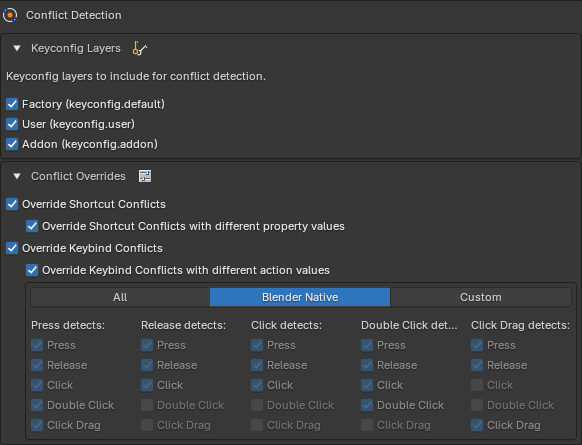
- Override Shortcut Conflicts — controls whether defaults that do the same thing as your entry get disabled, with a sub-toggle for defaults whose operator properties differ.
- Override Keybind Conflicts — controls whether defaults sitting on the same key get disabled, with a per-action-value matrix (Press, Release, Click, Double Click, Click Drag) for fine-grained control over which event types count.
With an override switched off, conflicts of that type are still detected and shown on the entry — but the default keybinding is left untouched.
What counts as a conflict is configurable in the addon preferences — including which keyconfig layers are scanned and how property and action values are compared.
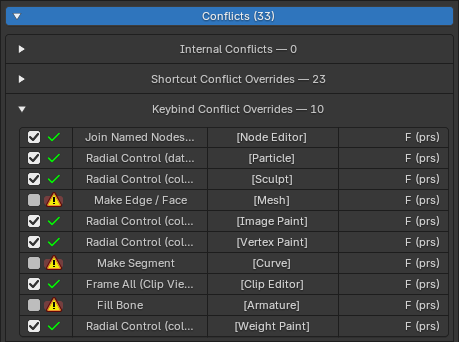
Overrides can also be controlled per entry. An entry's conflict list shows every default it currently overrides, each with its own checkbox — untick one, and that specific default stays enabled while the rest of the entry works as normal. Handy when you want your key everywhere except in a few contexts.
Import / Export
The export button in the toolbar saves your complete setup — folders, entries, keybinds, and operator properties — to a single JSON file. Import merges a JSON file back in, recreating folders and entries and registering their shortcuts immediately.
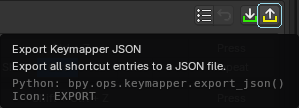
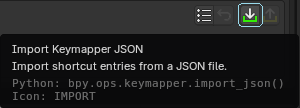
This is also the easiest way to move your shortcuts between Blender and Bforartists, between machines, or to share a setup with someone else.
Settings
The addon preferences (Edit > Preferences > Add-ons > Keymapper) contain:
- Panel Visibility — choose where the Keymapper panel appears (N-panel, addon preferences — the Keymap location is always enabled), and where the right-click popup's edit button redirects to.
- Conflict Detection — which keyconfig layers are scanned (Factory / User / Addon) and override rules for shortcut and keybind conflicts, including a per-action-value detection matrix.
- Other — Changelog and extra options such as enabling the Factory browse mode.
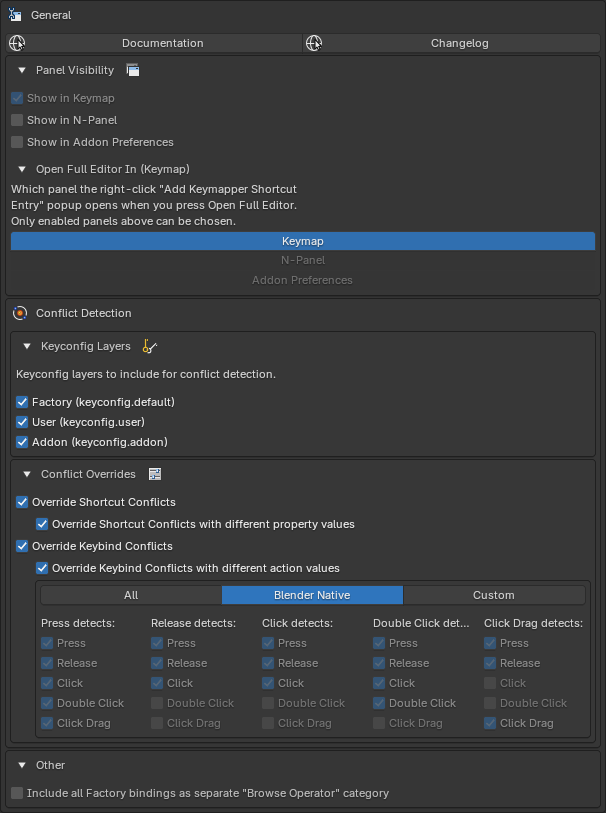
Every checkbox shows a restore button whenever its value differs from the default, so you can always get back to stock behavior.